For the songwriter
Keep song sections and lyric ideas in Scribe. Write the part in Compose, then bring the notes into the arrangement.
Explore writing tools ↗DPS SOUND STUDIO · DESKTOP SOFTWARE
A workspace for songwriters, musicians, and independent producers. Write a score, build an arrangement, bring in a performance, and shape the session with dedicated sound and mix tools.
In development · Private beta planned
THE STUDIO AT A GLANCE
COMPOSE → ARRANGE → CAPTURE → MIX → EXPORT
Some ideas arrive as a melody. Others start with a performance or a sound. DPS brings notation, a timeline, audio and MIDI tools, and production controls into a shared project environment.
Keep song sections and lyric ideas in Scribe. Write the part in Compose, then bring the notes into the arrangement.
Explore writing tools ↗Find Capture, input setup, and the note editor inside the same studio. See the selected source before working with a take.
Explore recording & MIDI ↗Inspect clips in Arrange, explore instrument and rig controls, and work from channel strips toward the master output.
Explore sound & mixing ↗01 COMPOSITION & NOTATION
A place to write notes, understand the part, and keep the structure of the song close by.
Place pitches and durations in Compose, choose the key and scale context, and inspect the part through the available notation views. The workspace includes standard notation, Nashville numbers, Roll, TAB, lead-sheet, and chord views.
Track controls and transport stay in reach. Save the composition, send the notes into Arrange, or export a PNG of the score when you want to review the notation outside the app.
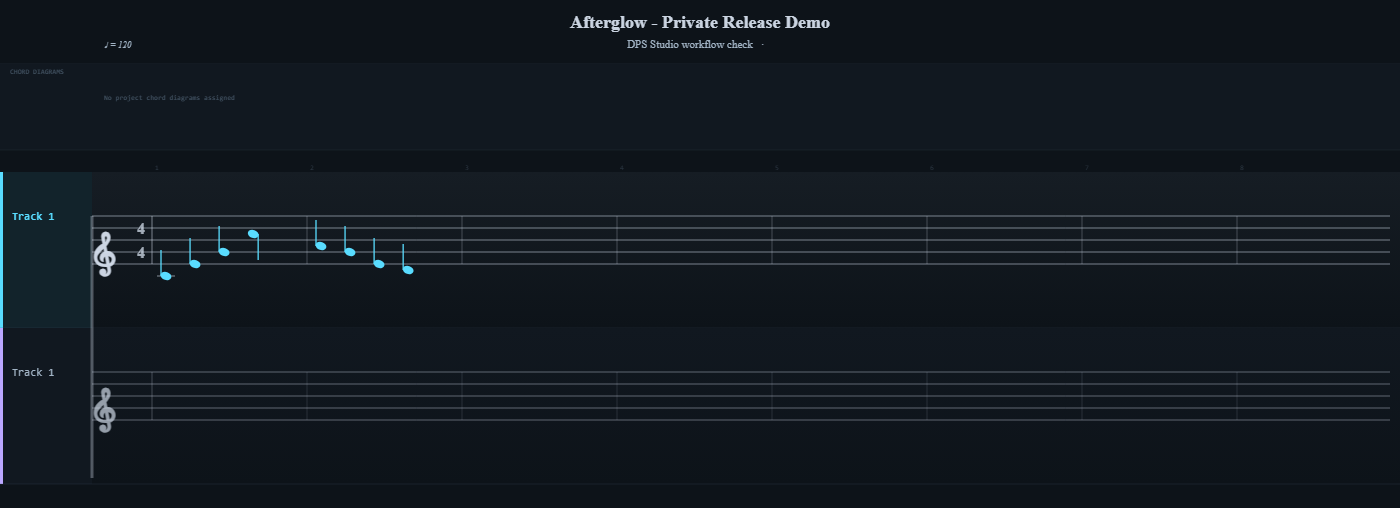
See a small composition example ↓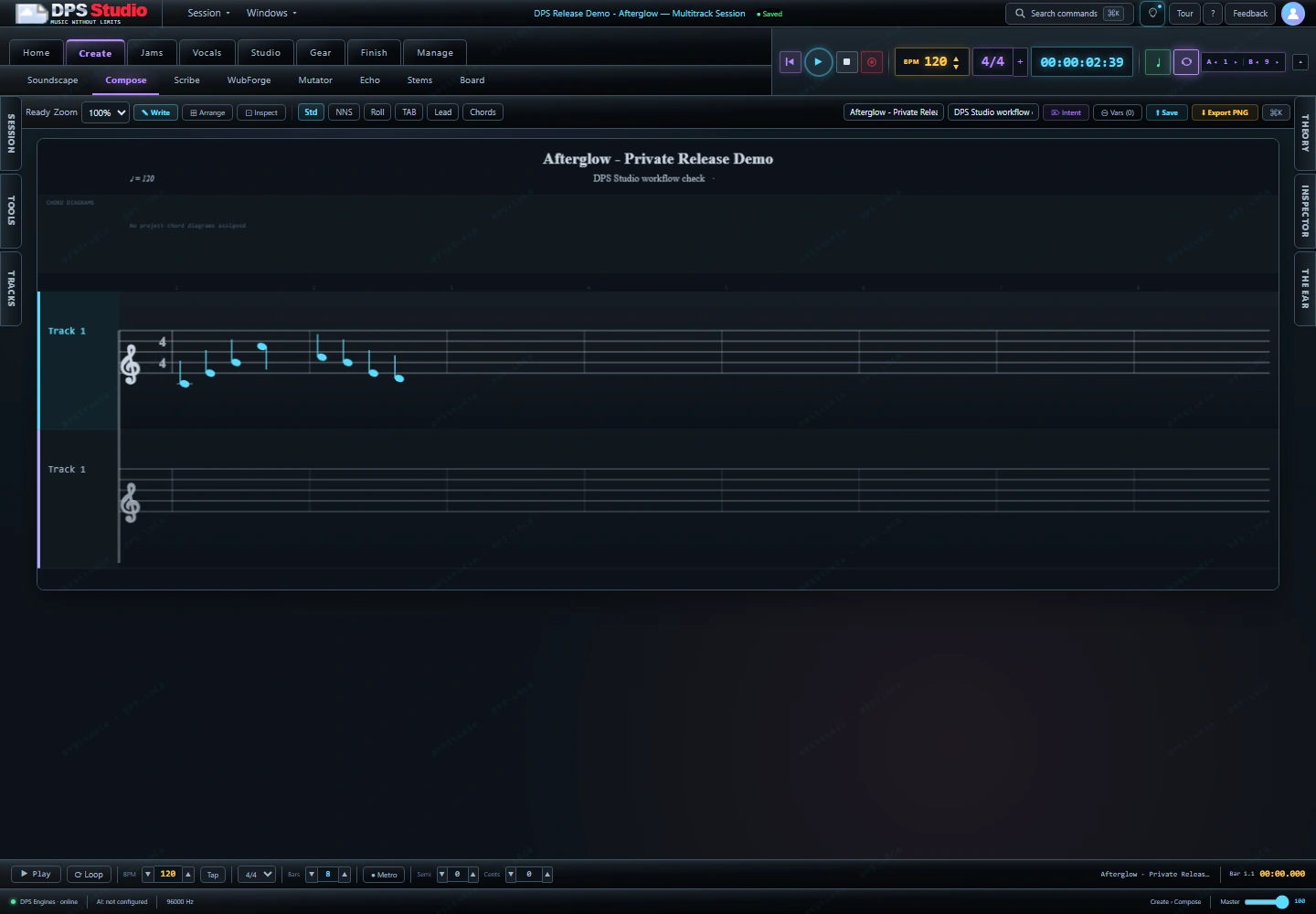
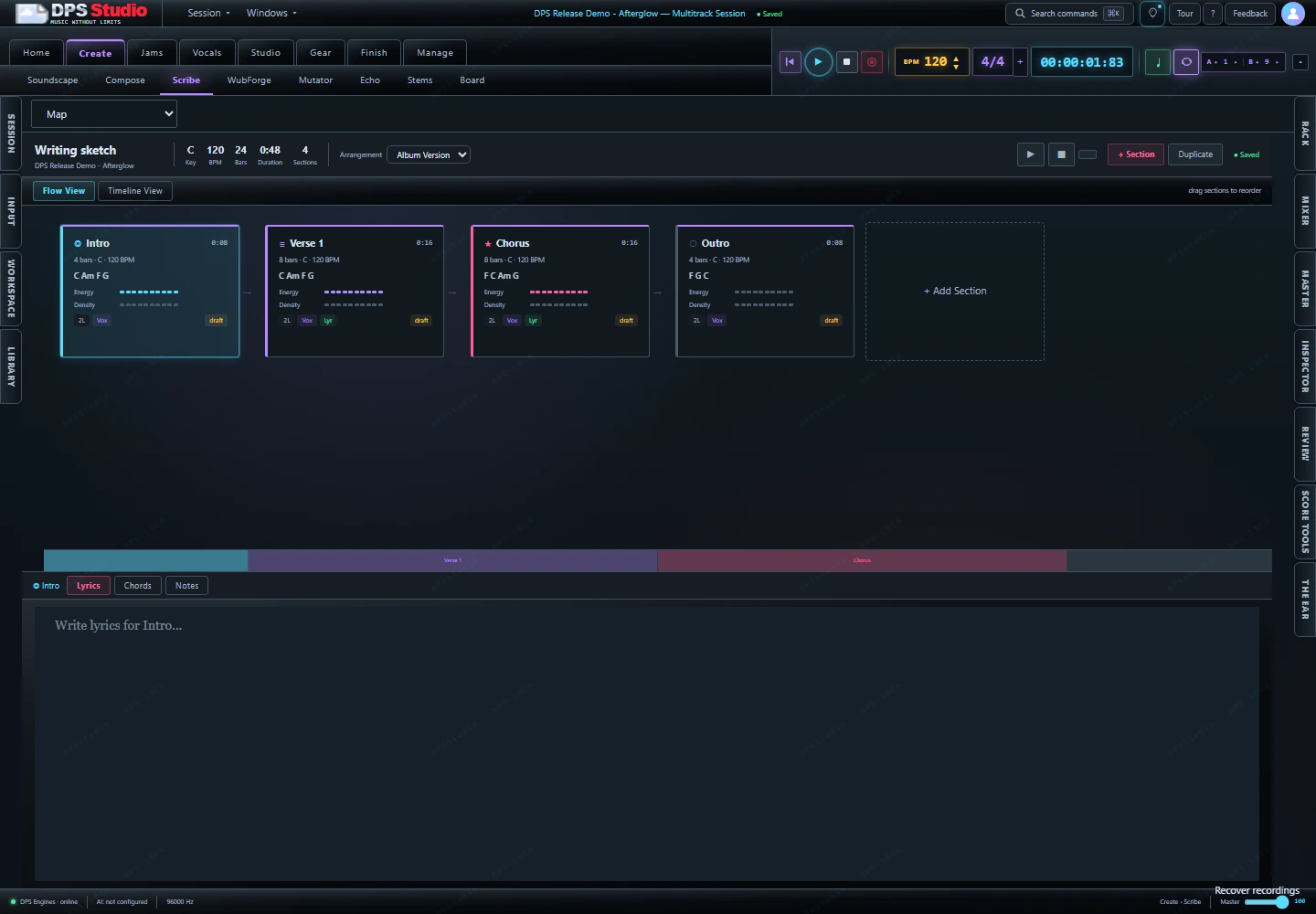
SONGWRITING / SCRIBE
Scribe keeps sections, lyric text, and chord-writing controls in a dedicated workspace. Use it to work through the shape of the song alongside the musical part.
NOTE EDITING / MIDI
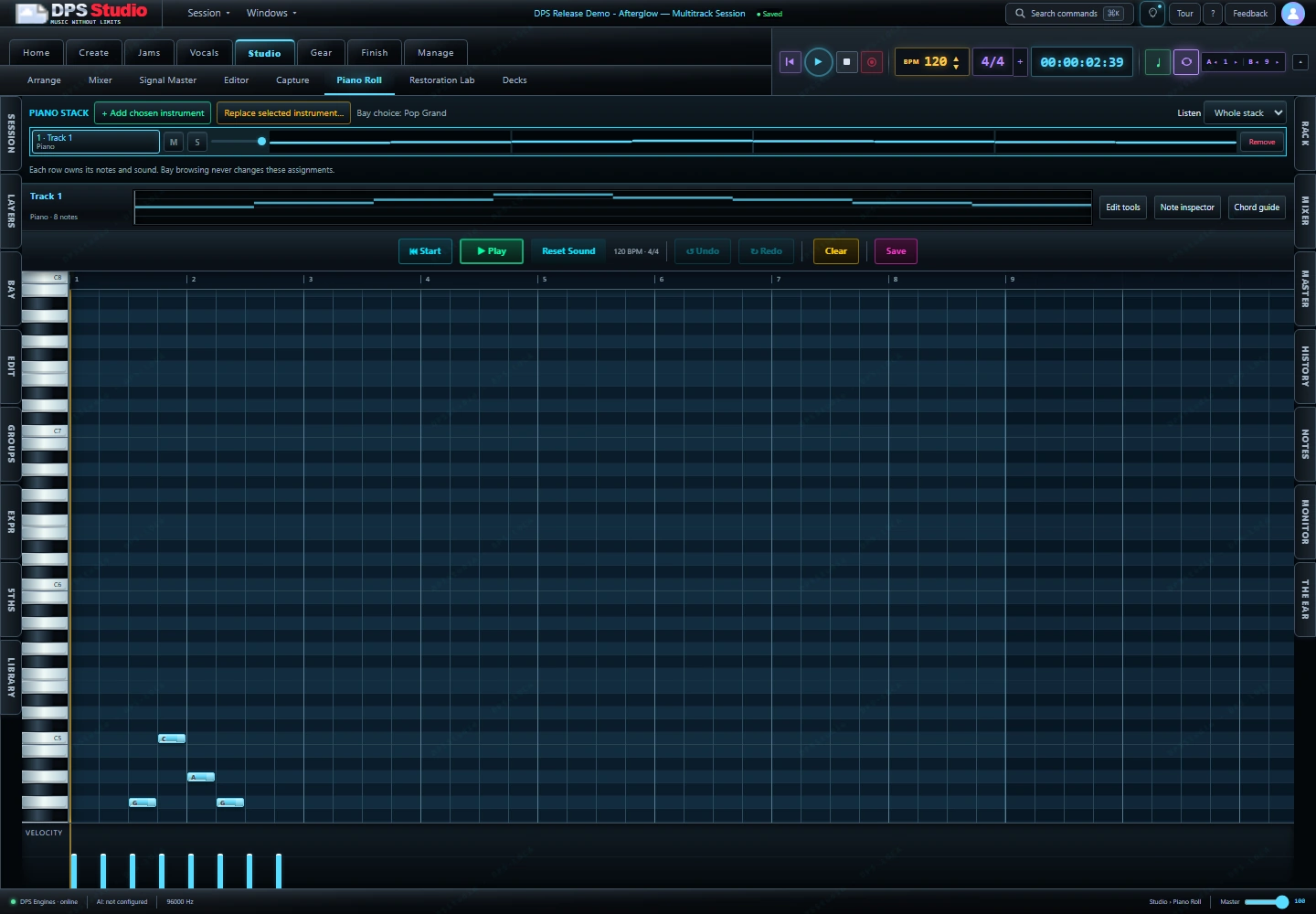
The Piano Roll gives notes a visual place against the grid. The current app also includes MIDI operation controls for tasks such as quantize, transpose, and velocity editing. Hardware MIDI setup and timing still need device-specific acceptance.
02 AUDIO CAPTURE & ROUTING
Capture brings source selection, recording controls, a signal view, and takes into one workspace. It offers paths for microphone or interface input and computer audio.
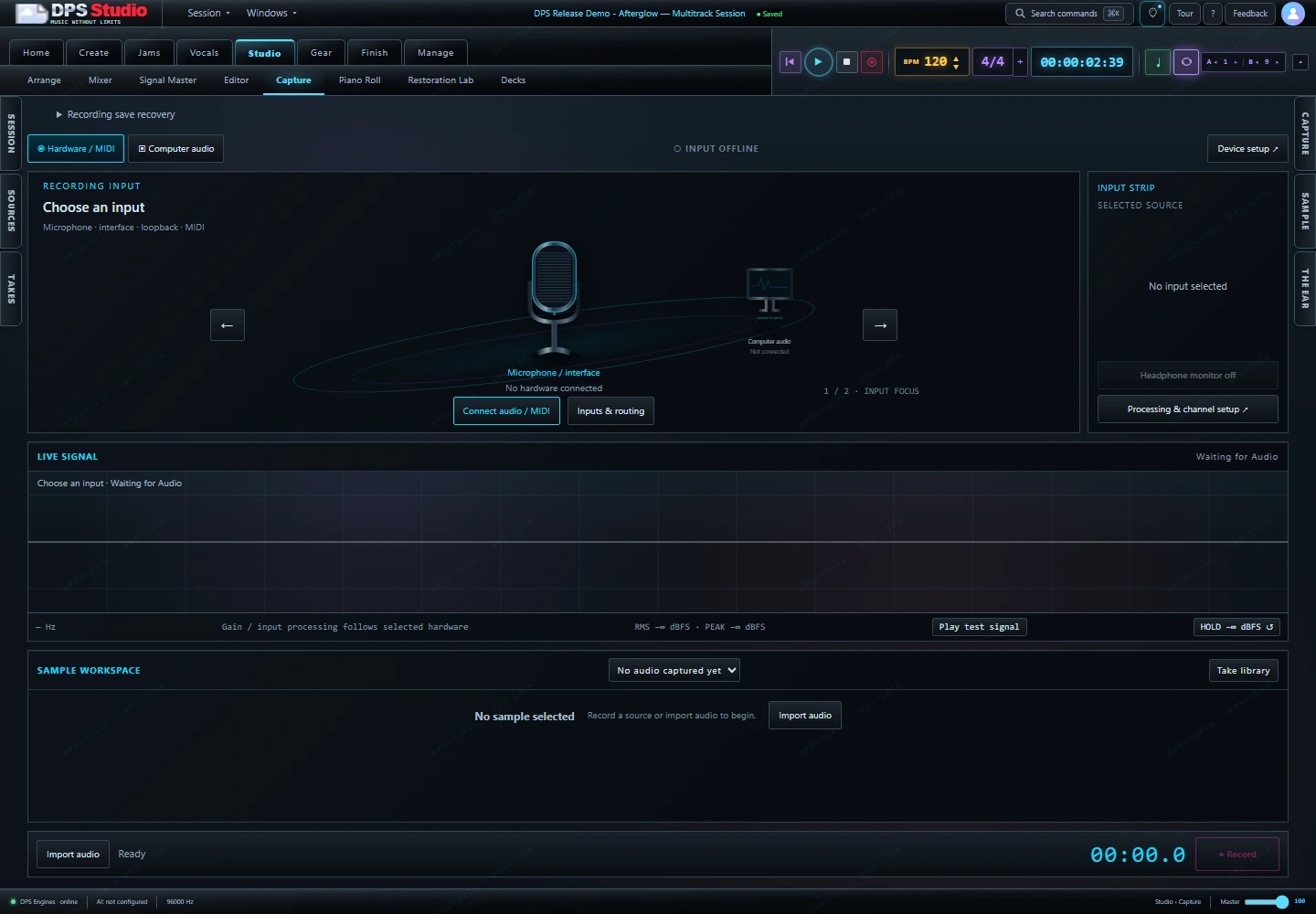
Use the hardware/MIDI or computer-audio entry point, then review inputs and routing. The interface shows the selected source and connection state.
The input strip and live-signal panel put setup and monitoring controls beside the recording workspace. Microphone permissions and hardware support depend on the setup.
Capture includes record, audio-import, sample, and take-library controls. Complete recording, monitoring, and recovery workflows remain part of desktop acceptance testing.
For the planned beta · Supported interfaces, devices, and recording conditions will be stated for the specific tester build.
03 INSTRUMENTS & GEAR
Explore instrument controls in Soundscape and signal-chain controls in Gear. These spaces put sound choices in the context of the session.
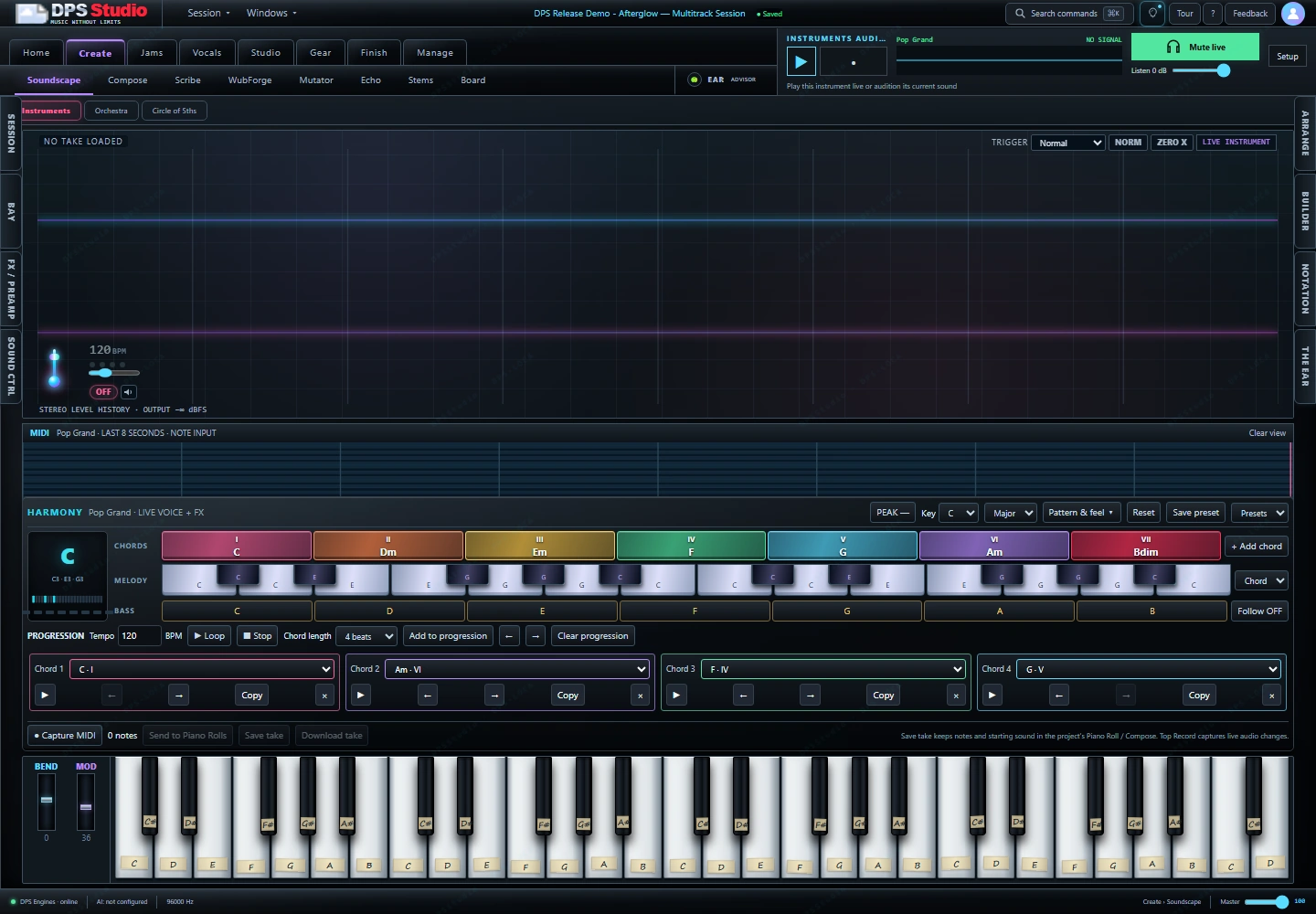
Browse instrument families and inspect the selected instrument’s playing and sound controls. Instruments, presets, and external sample resources vary by build and installed content.
Choose an instrument family, then inspect its available playing and sound-shaping controls.
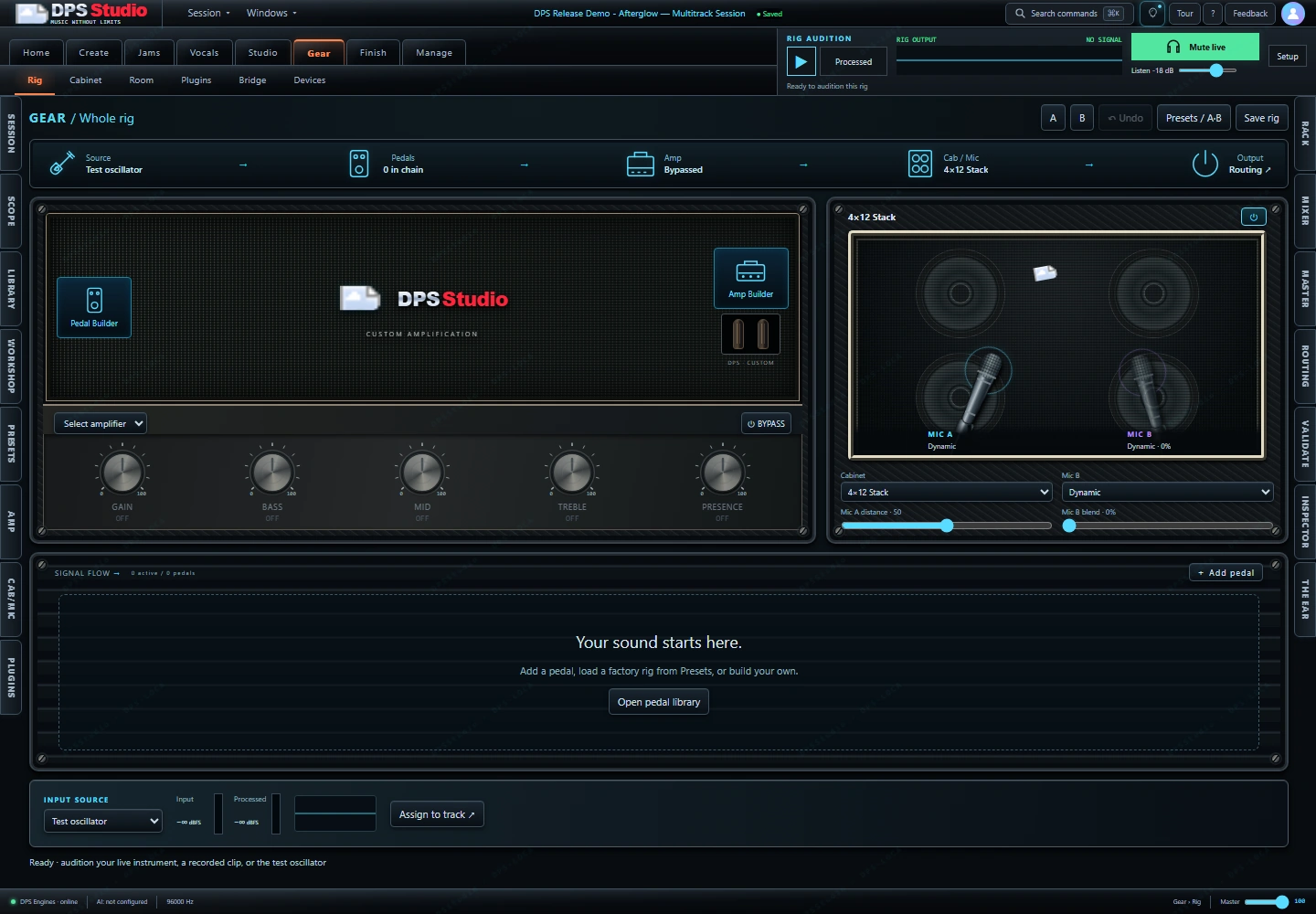
The Rig workspace provides amp, cabinet, and effects-related controls for shaping a signal chain. Work with the configuration here, then return to the arrangement or mixer.
Hardware behavior, external plugins, and complete audio processing depend on the supported setup.
04 MIXING, FINISHING & EXPORT
Move between track-level detail and the master output. The Mixer brings channel strips, bus controls, and output readings into a dedicated production view.
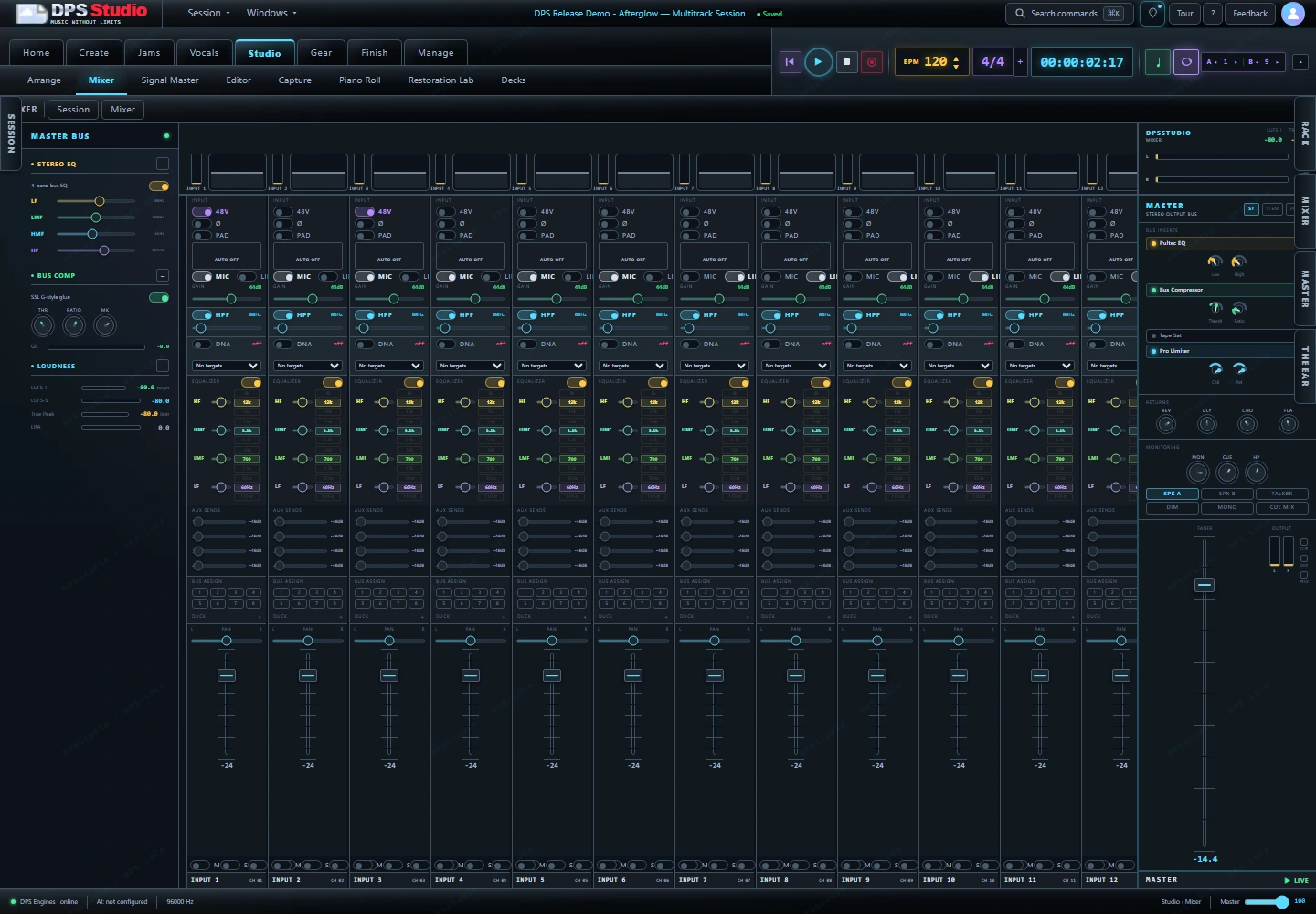
See levels, pan, mute, solo, and channel processing controls together. Dedicated channel strips make the relationship between individual sources and the session output visible.
Inspect the stereo EQ, bus compression, and loudness readings while working toward delivery. Keep the channel view and the master output in the same production workspace.
FINISH / EXPORT
The dedicated Export workspace prepares a WAV of the connected session mix and shows delivery status. Compose separately exports a PNG of the written score.
For written parts, inspect the exported notation as an image. For session audio, use the delivery view to review the selected output path and its status.
Inspect the original score PNG ↗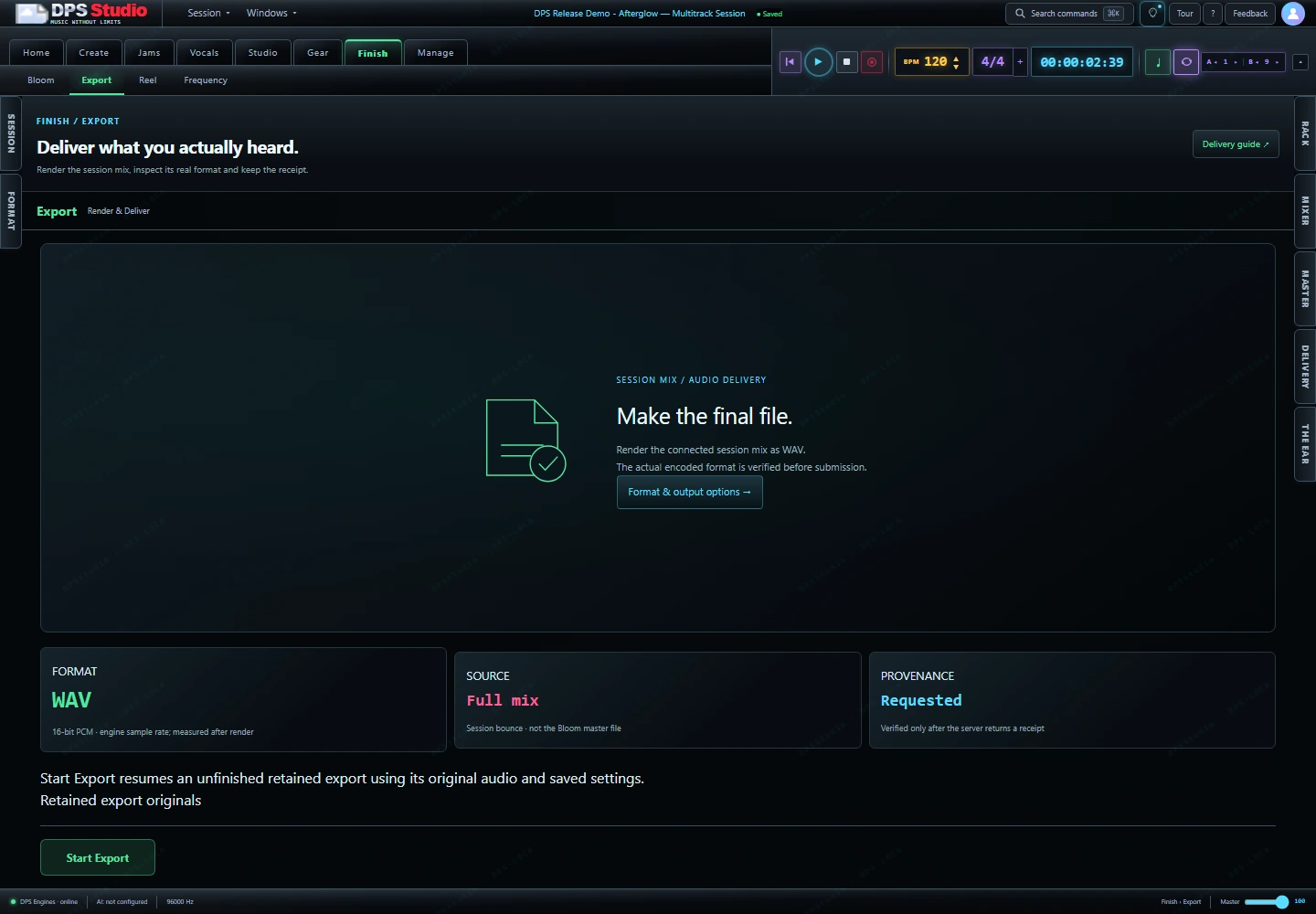
05 PROJECTS & GETTING STARTED
A session needs somewhere to live and a clear way back in. Project management and in-app orientation sit alongside the creative workspaces.
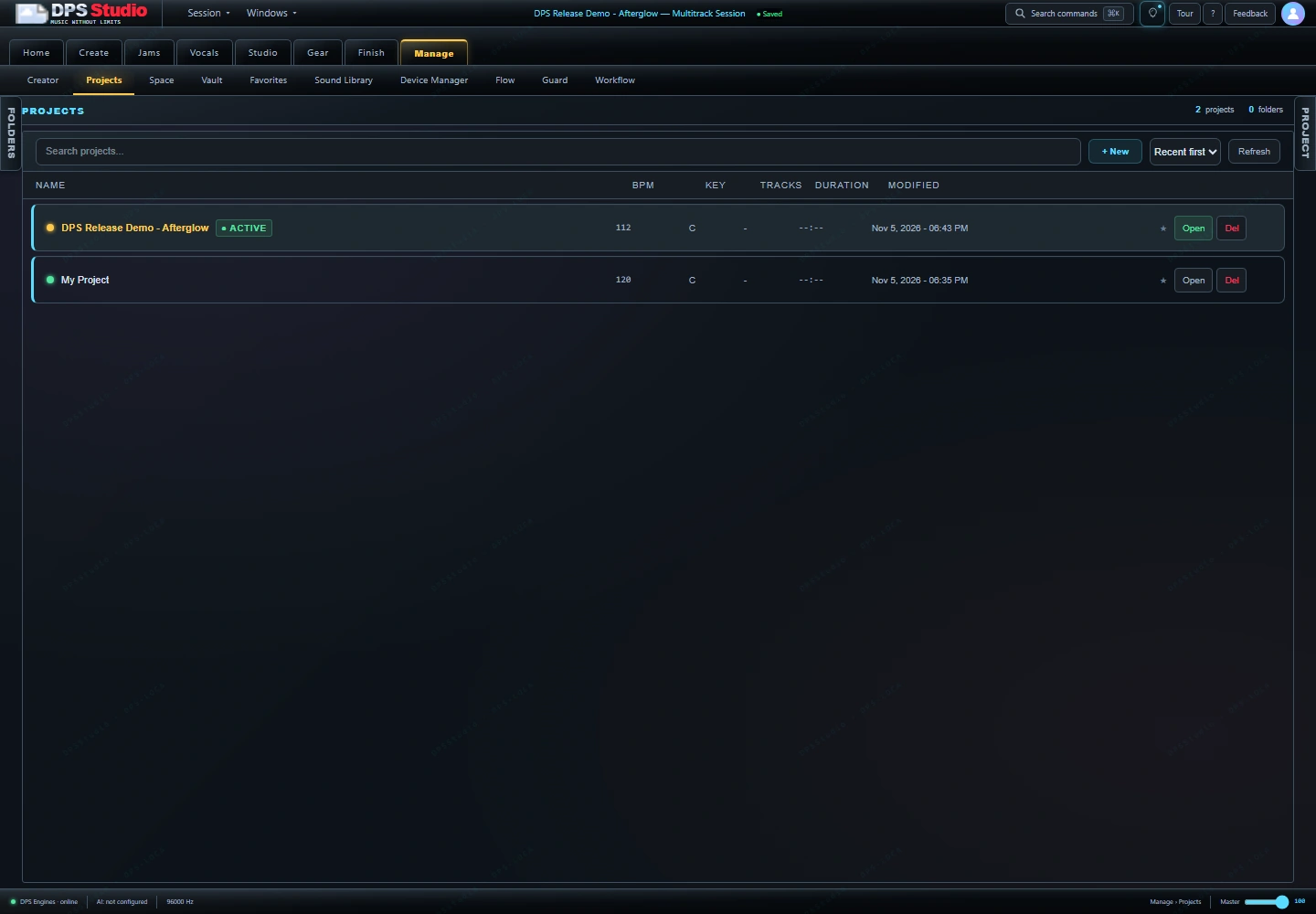
The Projects workspace includes project creation, opening, favorites, folders, sorting, and snapshot controls. The active project links the studio’s per-project surfaces.
The verified rehearsal saved and reopened its composition before bringing it into Arrange. Broader project backup and recovery acceptance is part of release testing.
The app includes Tour, command search, help, and Feedback entry points. For a guided look before beta access, request a walkthrough using the public demo form.
Talk through your workflow ↗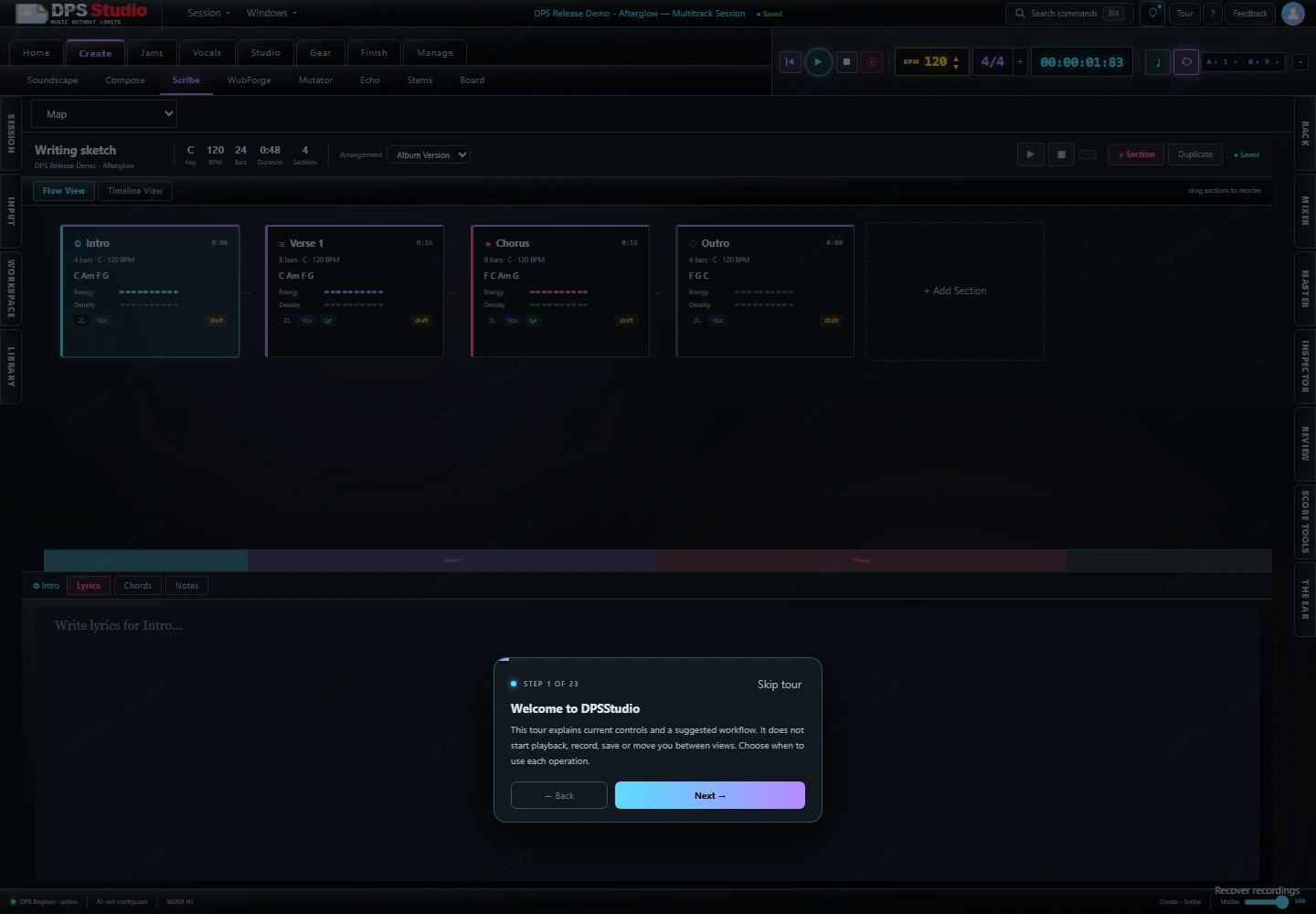
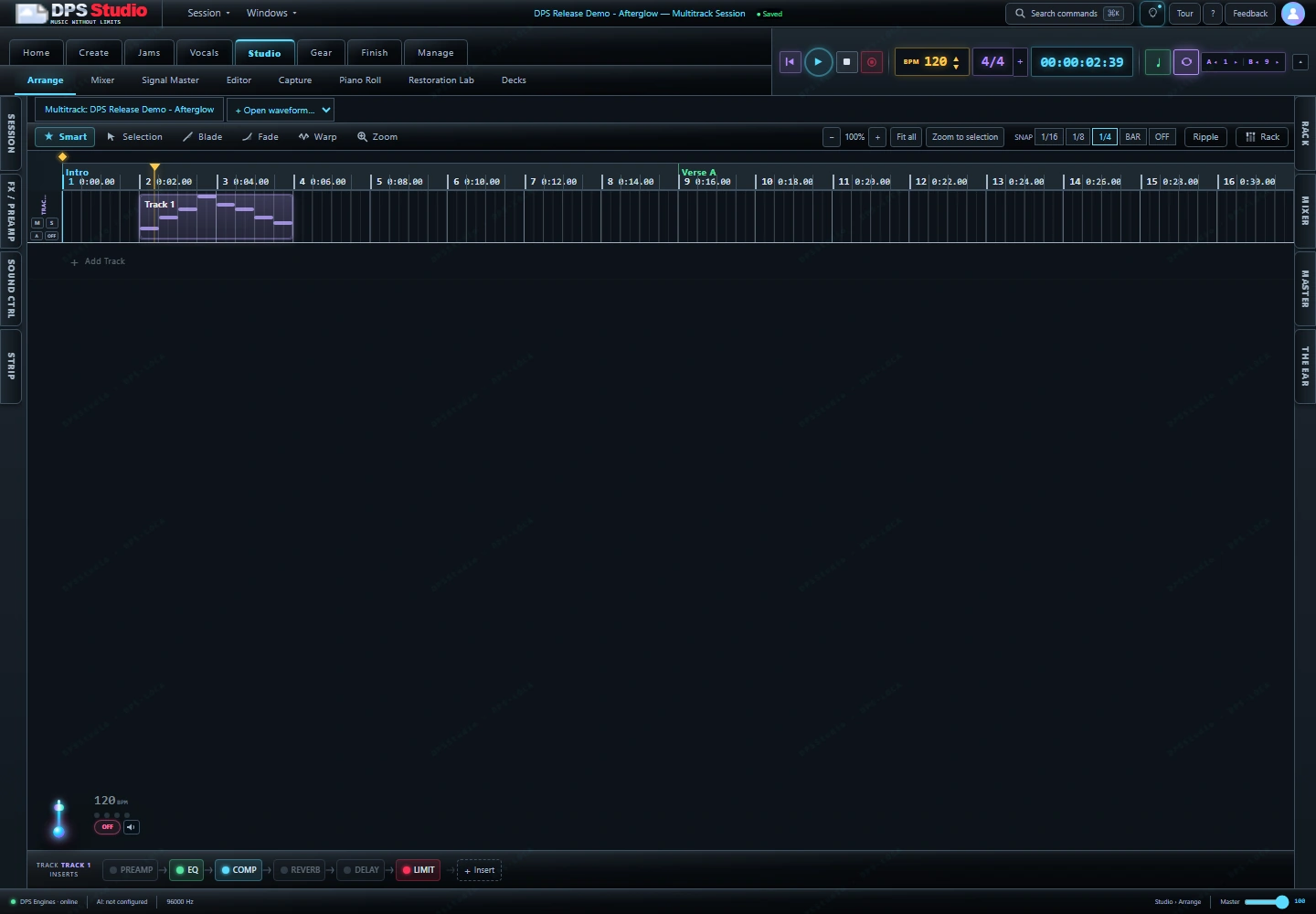
This original eight-note phrase is one small demonstration of the software. The development rehearsal saved and reopened the notes, transferred them into Arrange, and exported the score image.
The 15-second video is a silent montage of stills from that rehearsal.
Open the score PNG ↗CURRENT AVAILABILITY
The screenshots show implemented workspaces in an isolated development session. A customer-ready release still needs whole-product acceptance.
Demo requests are open. Private beta invitations and exact system requirements will follow when the tester build is ready.
Composition, arrangement, audio capture, instruments, gear, MIDI editing, mixing, output preparation, and project management controls.
Save and reopen a composition, transfer its notes into Arrange, and export a score PNG.
Installer readiness, hardware audio and MIDI, complete native mix playback, audio export, and supported external resources.
The feature list, supported system and devices, installation instructions, and known issues will be shared with the exact tester build. A public download is not available on this page.
DEMO, QUESTIONS & FEEDBACK
Show us where your session starts and what you want to do next. Request a walkthrough or ask a product question.
Already testing? Use the feedback form and name the build and workspace.